Computer Hardware Types Explained: More Than Just a Pile of Parts
I’ll never forget the first time I looked inside a computer case. It wasn’t a picture-perfect build with custom-loop cooling and RGB rainbows. It was a dusty, tangled mess of green circuit boards, colorful wires, and mysterious metal boxes. I felt overwhelmed. What did all these computer hardware types actually do? That moment of confusion sparked a journey. I learned that understanding these components isn’t just for geeks or gamers; it’s for anyone who wants to make informed decisions, whether you’re buying a laptop, building a PC, or just trying to figure out why your computer is so slow. Forget dry, textbook definitions. Let’s explore the core computer hardware types as if we’re building a digital city from the ground up. We’ll give each component a job, see how they interact, and uncover the practical impact they have on your daily experience. This is a guide to becoming an informed citizen of your own machine.
The Foundation: Core System Components
Every computer, from a smartwatch to a supercomputer, relies on a set of fundamental components. These are the non-negotiable pieces that form the backbone of the entire system.
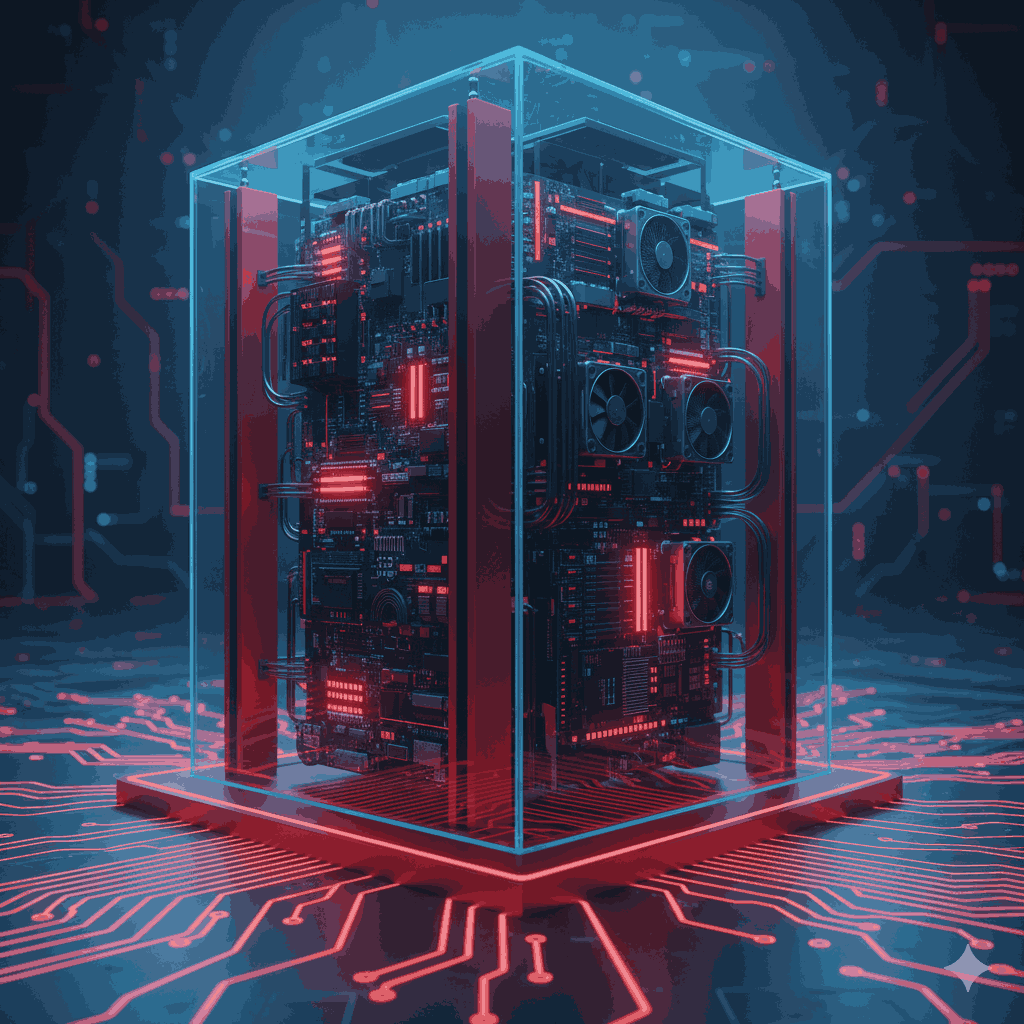
1. The Motherboard: The Central Metropolis
Think of the motherboard as the city’s infrastructure. It’s the sprawling printed circuit board (PCB) that provides the streets, power lines, and zoning laws for all other components.
- Its Role: The motherboard doesn’t process data itself. Instead, it facilitates all communication. It houses the CPU socket, RAM slots, and expansion ports, ensuring that the processor, memory, and graphics card can all talk to each other efficiently.
- Real-World Impact: The motherboard you choose dictates your PC’s future. Want to upgrade your CPU in two years? You need a compatible motherboard with the right socket (like AMD’s AM5 or Intel’s LGA 1700). Need lightning-fast storage? You’ll want a board with multiple M.2 slots for NVMe SSDs. It’s the ultimate determinant of your system’s potential.
- Personal Anecdote: I once tried to upgrade an old office PC with a new graphics card, only to find the motherboard’s PCIe slot was an older, slower generation. The card fit, but it was like putting a Formula 1 engine in a car with bicycle tires. The motherboard was the bottleneck.
2. The CPU (Central Processing Unit): The City’s Mayor
The CPU, or processor, is the mayor of our digital city. It doesn’t do every single job, but it gives the orders, manages tasks, and handles the most critical calculations.
- Its Role: The CPU executes instructions from programs. Its speed, measured in Gigahertz (GHz), and its core count determine how efficiently it can handle multiple tasks at once. Modern CPUs from Intel and AMD can have multiple “performance” and “efficiency” cores, like having a team of specialized assistants for different jobs.
- Key Specs: Cores, Threads, and Clock Speed.
- Real-World Impact: A powerful CPU is crucial for tasks that require complex calculations, like video editing, software compilation, and running multiple virtual machines. For general web browsing and document editing, a modern mid-range CPU is more than sufficient.
3. RAM (Random Access Memory): The City’s Short-Term Memory
If the CPU is the mayor, RAM is the mayor’s desk. It holds all the information and applications that are currently in active use.
- Its Role: RAM provides ultra-fast, temporary storage for data the CPU needs immediately. It is volatile, meaning it loses all its data when the power is cut. This is why you lose your work if a program crashes without saving.
- Real-World Impact: The more RAM you have, the more applications you can have open simultaneously without the system slowing to a crawl. When RAM fills up, the system starts using the much slower storage drive as “virtual memory,” leading to noticeable lag. For most users today, 16GB is the sweet spot, with 32GB becoming standard for content creators and gamers.
- Analogy: Imagine a chef cooking. The countertop is the RAM. The ingredients (data) are pulled from the fridge (storage drive) and placed on the counter for quick access. A bigger counter (more RAM) means the chef can work on more dishes at once without constantly bending down to the fridge.
4. Storage (SSD & HDD): The City’s Long-Term Archives
This is where your data lives permanently—your operating system, programs, photos, and documents. There are two primary computer hardware types for storage.
SSDs (Solid State Drives)
SSDs use flash memory, like a giant USB drive. They have no moving parts, which makes them incredibly fast, durable, and power-efficient.
- Best For: Your operating system, applications, and frequently played games. An SSD is the single biggest upgrade you can make to speed up a feeling of a “slow” computer.
- Types: NVMe SSDs (fastest, plug directly into the motherboard) and SATA SSDs (slower, but still much faster than HDDs).
HDDs (Hard Disk Drives)
HDDs use spinning magnetic platters and a read/write head. They are slower, more fragile, and louder, but they offer vastly more storage for the price.
- Best For: Bulk storage—archiving photos, videos, and documents you don’t need instant access to.
Here’s a quick comparison:
| Feature | SSD (Solid State Drive) | HDD (Hard Disk Drive) |
|---|---|---|
| Speed | Very Fast | Slow |
| Durability | High (no moving parts) | Lower (mechanical parts) |
| Noise | Silent | Audible clicks and spins |
| Cost per GB | Higher | Much Lower |
| Primary Use | OS, Programs, Games | Mass File Storage |
The Experience Shapers: Graphics, Power, and Cooling
These components don’t make the computer “tick” in a fundamental sense, but they define what the computer is capable of and how reliably it runs.
5. GPU (Graphics Processing Unit): The Creative Studio
The GPU, or graphics card, is a specialized processor originally designed for rendering 3D graphics. Today, its parallel architecture makes it a powerhouse for a variety of tasks.
- Its Role: While the CPU is a mayor handling diverse tasks, the GPU is a team of thousands of artists working on the same type of problem simultaneously. This makes it ideal for:
- Gaming: Rendering complex game worlds at high resolutions and frame rates.
- Content Creation: Accelerating video editing, 3D rendering, and graphic design in applications like Blender and Adobe Premiere Pro.
- AI and Machine Learning: The architecture of modern GPUs from NVIDIA and AMD is exceptionally good at the math required for AI models.
- Integrated vs. Discrete: Many CPUs have integrated graphics, which are good for basic display output. A discrete GPU is a separate, much more powerful card dedicated to graphics processing.
6. PSU (Power Supply Unit): The City’s Power Plant
The PSU is the most unglamorous but critically important component. It converts AC power from your wall outlet into stable DC power that your delicate components require.
- Its Role: A quality PSU provides clean, consistent power. A cheap, low-quality unit can be unstable and, in a worst-case scenario, can damage other components.
- Key Spec: Wattage and Efficiency Rating (80 Plus Bronze, Gold, Platinum). Don’t just buy the highest wattage you can find. Use a PSU calculator to estimate your system’s needs and add some headroom for future upgrades.
7. Cooling System: The City’s Climate Control
As components work, they generate heat. Too much heat leads to “thermal throttling” (the component slows down to protect itself) and can shorten its lifespan.
- Air Cooling: The most common type, using a combination of heatsinks (metal fins that dissipate heat) and fans.
- Liquid Cooling: Uses a pump, tubing, and a radiator to transfer heat away from components more efficiently. Often used for high-performance systems and overclocking.
- Real-World Impact: Good cooling isn’t just about extreme performance; it’s about longevity and noise. A well-cooled system will last longer and can often run more quietly, as the fans don’t have to spin as fast to keep temperatures down.
Bringing It All Together: The Boot Process
Understanding how these computer hardware types interact is best illustrated by the boot process:
- You press the power button, and the PSU sends power to the motherboard.
- The CPU activates and runs a tiny program called the BIOS/UEFI stored on the motherboard.
- The BIOS/UEFI performs a Power-On Self-Test (POST) to check that all critical computer hardware types (CPU, RAM) are functioning.
- It then locates the boot loader on your storage drive (SSD/HDD).
- The boot loader loads the operating system (Windows, Linux, macOS) from the storage drive into the RAM.
- The CPU now begins executing the OS from the RAM, and your desktop appears.
It’s a beautiful, coordinated dance of hardware, each part playing its specific role to bring the machine to life.
Conclusion: Knowledge is Power
Navigating the world of computer hardware types is no longer about deciphering a tangled mess. It’s about understanding the roles and relationships between these components. Whether you’re building a PC for the first time, buying a pre-built machine, or simply trying to understand the specs on a laptop listing, this knowledge empowers you to make smart, cost-effective decisions.
You don’t need to be an engineer, just an informed user. You now know that an SSD will breathe new life into an old machine, that RAM is your multitasking guardian, and that the motherboard is the foundation upon which everything is built.