


Learning how to edit a PDF used to feel like you needed a special key to a locked room. Today, that door is wide open. You essentially have three paths to choose from: quick-and-dirty online tools, surprisingly capable apps already on your computer, or powerhouse desktop software for heavy lifting. Which one you pick really just depends on what you need to get done, how sensitive the file is, and what you’re willing to spend.
Why Editing PDFs Is Now an Everyday Skill
Remember when a PDF was a digital rock? It was designed to look the same everywhere, a final, unchangeable document. That was its whole point. But our digital work lives have changed, and the PDF has had to change, too.
What was once a static format is now something we constantly interact with. Students are highlighting research papers, marketers are tweaking brochures, and contracts are getting signed on the fly. The need to jump into a PDF and make a change is just… normal now.
This didn’t happen overnight. The PDF has been with us since 1993, but for most of its life, we were just viewers. The real shift started when browser-based tools and free apps began popping up, taking PDF editing out of the exclusive hands of professionals. The growth has been wild. The market for dedicated PDF editor software hit USD 3.36 billion in 2023 and is on track to explode to USD 15.1 billion by 2032. You can see the full report and dive into the evolving PDF software market.
From Static to Essential
Modern work is all about flexibility. You might need to add your signature to a contract from your phone, yank an old page out of a company report, or fix a glaring typo minutes before a big meeting. Knowing your options saves a ton of time and spares you a lot of frustration.
Your approach to editing a PDF will almost always fall into one of three buckets:
- Free Online Tools: These are your go-to for simple, one-off jobs. Think merging a couple of files, converting a Word doc to a PDF, or adding a quick text box. They’re accessible from anywhere and don’t require you to install a thing.
- Built-in System Apps: Your computer probably has some PDF skills you don’t even know about. The Preview app on macOS, for example, is a workhorse for annotating, filling out forms, and basic page rearranging.
- Dedicated Desktop Software: When you need to do serious surgery—like changing the original text, swapping out images, or blacking out sensitive information—you need a dedicated program like Adobe Acrobat. These tools give you total control.
The real secret is matching the tool to the task. Firing up a complex desktop program just to merge two pages is like using a sledgehammer to hang a picture frame. On the flip side, you probably don’t want to upload a sensitive legal document to a random free website.
Choosing the right method makes sure your documents look professional, stay secure, and are ready for whatever comes next. This guide will walk you through all of it, so you can confidently tackle any PDF, no matter where you are. For more tips on wrangling your documents, check out our other articles on file formatting.
Taking On the Most Common PDF Edits
Alright, let’s get our hands dirty. Knowing how to edit a PDF isn’t about becoming a software guru; it’s about solving real problems, fast. It’s the ability to fix a typo in a report two minutes before the big meeting or sign an urgent contract from a coffee shop on your phone.
These everyday tasks are what most of us need to do. Once you nail these, you can handle pretty much any document that lands in your inbox without breaking a sweat. Thankfully, modern tools have turned these once-frustrating jobs into a few simple clicks.
This flow shows the typical path most people take with a PDF—from just looking at it, to making small tweaks, and finally, diving into the deep end with professional-level edits.
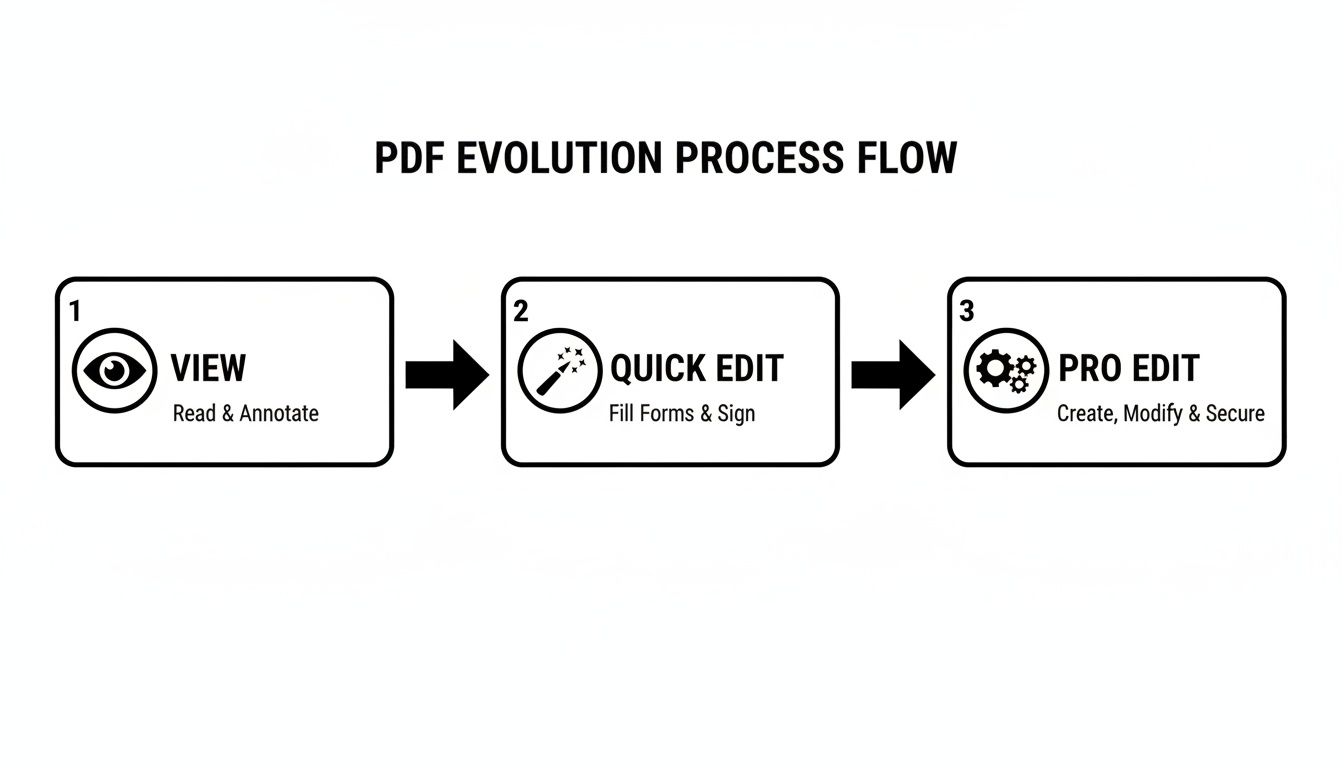
As you can see, the sweet spot for most users is that “quick edit” zone. This is where free tools and built-in apps really deliver. The “pro” stuff is less common, but absolutely critical when you need total control over a document’s DNA.
Fixing Text and Swapping Images
Picture this: you’ve just finalized a beautiful marketing brochure, but your eye catches a glaring typo on page two. Or maybe a team member’s headshot is from five years ago and needs a refresh. These are the bread-and-butter edits.
Most serious PDF editors, like Adobe Acrobat, have a mode you can enter, usually called “Edit PDF” or something similar. Once you click it, the software scans the document and makes the text and images behave just like they would in a word processor. You can click right into a text box to fix a spelling mistake, update a date, or tweak a sentence.
It’s the same deal with images. Click on one, and you can resize, move, or replace it on the spot. A quick right-click usually brings up a “Replace Image” option, letting you pull in a new file from your computer. The whole process is designed to feel intuitive.
Pro Tip: When you edit text, the PDF editor does its best to match the original font. If you don’t have that specific font installed on your computer, it will swap in a close match. This can sometimes throw the spacing off. Always give the paragraph a quick once-over after you make a change.
Annotating and Collaborating
PDFs are the lifeblood of teamwork. You might need to leave feedback on a draft for a colleague, highlight key numbers for your boss, or just jot down notes on a research paper for yourself. This is where annotation tools shine.
Instead of permanently altering the original content, annotations work like digital sticky notes layered on top. This is perfect for collaboration—you can suggest changes without messing with the source text.
Common annotation tools let you:
- Highlight: Drag your cursor over text to make important bits stand out.
- Add Comments: Drop a comment bubble next to a specific section to type out questions or detailed feedback.
- Draw Shapes: Use lines, arrows, or circles to pinpoint a problem area or show where something needs to move.
These features are baked into almost every PDF viewer out there, including free ones like Adobe Reader and the Preview app on every Mac, making it incredibly easy to work with others.
Filling and Signing Forms Securely
We’ve all been there—contracts to sign, applications to fill out, invoices to complete. The old way of printing, signing with a pen, and scanning is officially dead. Modern PDF software makes this a seamless digital workflow.
Most editors can automatically detect interactive form fields, so you can just click and start typing. If a form is “flat” and not interactive, a good editor will have an “Add Text” tool that lets you place your own text boxes right where you need them.
When it’s time to sign, you’ve got a few options:
- Type your name: The software converts your typed name into a script-like font.
- Draw your signature: Use your mouse, trackpad, or stylus to sign your name directly.
- Upload an image: Sign a clean white piece of paper, snap a photo of it, and upload the image.
These digital signatures are widely accepted and, in many cases, legally binding. It’s a secure and ridiculously efficient way to get documents finalized and on their way.
While these tasks cover edits you make directly within the PDF, sometimes the smartest move is to change the file type entirely. For those times you need absolute control over the text and layout, our guide on how to safely convert a PDF to a Word document will walk you through the process.
Choosing the Right PDF Editor for Your Needs
Trying to find the right PDF tool can feel like wading through an endless sea of options. The good news? You can cut through the noise by focusing on one simple question: “What do I need to do right now?” The best tool is simply the one that matches your immediate goal, whether that’s a quick signature or a complete document overhaul.
This explosion of choice is no accident. The global PDF editing market was valued at around USD 0.78 billion in 2024 and is on track to hit USD 2.0 billion by 2033. That growth explains the sheer variety, from heavyweight desktop software for corporations to nimble web tools for students and bloggers. You can dig into the PDF software market’s growth trends for more details. Ultimately, it means there’s a perfect fit for you; you just need to know where to look.
To help you decide, I’ve put together a quick comparison of the most common types of PDF editors. This table breaks down what each is good for, its core features, and the critical trade-offs in security and cost.
Comparison of PDF Editing Tools
| Tool Type | Best For | Key Features | Security & Privacy | Cost |
|---|---|---|---|---|
| Web-Based Tools | Quick, one-off tasks like converting, merging, or compressing files. | Browser-based, no installation needed, simple interface. | Lower; files are uploaded to third-party servers. Avoid for sensitive documents. | Mostly free with limits, some have premium tiers. |
| Built-In System Apps | Basic annotations, filling & signing forms, reordering/deleting pages. | Comes pre-installed (e.g., macOS Preview), offline access. | High; files are processed locally and never leave your device. | Free (included with your OS). |
| Desktop Software | Heavy-duty editing, OCR, redacting sensitive data, batch processing. | Edit original text/images, advanced security, comprehensive feature set. | Very high; professional-grade security features and local file processing. | Paid, often via subscription (e.g., Adobe Acrobat Pro). |
This table should give you a solid starting point. Now, let’s unpack what these options feel like in the real world.
Web-Based Tools: The Fast and Free Option
Online PDF editors are the definition of convenience. They run right in your browser, so there’s nothing to install, and they’re usually free for basic edits. Think of them as the perfect tool for simple, one-and-done jobs.
They really shine when you need to:
- Quickly convert a Word doc into a PDF before sending it off.
- Merge a few separate PDFs into a single report.
- Compress a huge file so you can actually attach it to an email.
So, what’s the catch? Security. When you use a web tool, you’re uploading your document to someone else’s server. That’s a non-starter for anything sensitive, like contracts, financial records, or client information. Their editing features are also pretty surface-level; you can usually add new text boxes, but you can’t change the original text in the document.
Built-In System Apps: Your Hidden Workhorse
Before you rush to download a new app, it’s worth checking what your computer can already do. Both Windows and macOS have native tools with some surprisingly powerful PDF features built right in. They are often the best first stop.
The Preview app on macOS, for example, is a beast. I use it constantly to fill and sign forms, highlight key passages, add comments, and even delete or rearrange pages. It can’t edit the core text of a PDF, but it handles probably 80% of my day-to-day PDF tasks without costing me a penny or requiring a single download.
Don’t overlook the software that came with your machine. For tasks like signing a rental agreement or adding a quick note, a built-in app is almost always the fastest and most secure path because your file stays right where it is—on your device.
Dedicated Desktop Software: The Power Player
When you need total, uncompromising control over a document, nothing beats dedicated desktop software. This is the territory of titans like Adobe Acrobat Pro, applications built from the ground up for complex, professional document work.
You’ll want to reach for a desktop program when your task involves:
- Changing the original text and images inside the PDF itself.
- Permanently blacking out (redacting) sensitive information so it’s truly gone.
- Running Optical Character Recognition (OCR) to turn a scanned image into editable, searchable text.
- Applying the same change to hundreds of files at once.
The main downside here is the cost, as most high-end editors are subscription-based. But for professionals, content creators, and anyone who lives in PDFs, that investment pays for itself with advanced features and saved time. Choosing wisely means you get all the power you need without paying for features you’ll never touch.
How to Edit PDF Files on Any Device
Knowing how to edit a PDF isn’t just a desk job skill anymore. It’s about being able to sign a contract from your phone in a coffee shop or add a quick note to a report while waiting for a flight. Your workflow is mobile, and your tools have to keep up.
The good news is that powerful PDF editing is no longer chained to a desktop computer. It’s available on virtually every device you own. The trick is understanding the unique strengths of each platform so you can grab the most efficient tool for the job at hand.
Let’s break down how to get things done on the devices you use every day.
Editing PDFs on Windows
Windows users have a massive ecosystem of software to choose from, ranging from free readers with basic annotation features to full-blown professional editors. While Windows doesn’t have a native powerhouse editor like macOS Preview, its built-in browser, Microsoft Edge, has some surprisingly useful markup tools.
You can open any PDF right in Edge to:
- Highlight text to make key points stand out.
- Draw or write directly on the document—perfect for quick notes or circling an area of concern.
- Add text boxes to fill out simple, non-interactive forms.
For anything more complex, like altering the original text, redacting sensitive info, or rearranging pages, a dedicated app is the way to go. Tools like Adobe Acrobat or Foxit PDF Editor offer complete control for professional-level tasks.
Editing PDFs on macOS
If you’re a Mac user, you’re in luck. The built-in Preview app is one of the most capable free PDF tools available on any operating system, period. Before you even think about downloading another program, see if Preview can handle it—it probably can.
I use Preview almost daily for a huge range of tasks without ever leaving my desktop.
With Preview, you can fill and sign forms, annotate documents with highlights and notes, merge multiple PDFs, delete or reorder pages, and even make minor image adjustments. It’s the ultimate example of a powerful tool hiding in plain sight.
For tasks that go beyond what Preview offers, like converting a PDF to a high-quality image, you might need a different approach. Our detailed guide on how to convert a PDF to a JPG walks you through several simple methods that work great for Mac users.
Editing PDFs on Mobile Devices
The way we work has fundamentally changed. Many editing tasks have moved from complex desktop software to quick actions on the go. This shift is reflected in the booming market for PDF editor apps, which was valued at USD 2.5 billion in 2024 and is projected to grow significantly. This growth is driven by people like us who need to annotate a reading on a tablet or rearrange pages from a browser.
Both iOS and Android have excellent options for editing PDFs while you’re out and about:
- iOS/iPadOS: The native Files app lets you mark up and sign PDFs directly. The Markup tool, accessible from almost anywhere in the OS, allows you to draw, highlight, and add text with ease.
- Android: Google Drive has a built-in PDF viewer with basic annotation features. For more power, dedicated apps from Adobe, Xodo, or Foxit bring desktop-class features right to your phone or tablet.
These mobile apps are perfect for reviewing documents, adding your signature, or making quick notes during your commute. They’re all about getting the job done, wherever you are.
Advanced PDF Workflows for Creators and Professionals
Once you move past tweaking a typo or swapping out a page, you enter a different world of PDF editing. For professionals and creators, the real power isn’t just in small corrections; it’s in completely transforming documents to fit your needs.
This is where you make your files work for you. We’re talking about turning static reports into dynamic data, making scanned archives instantly searchable, and ensuring your files are nimble enough for the modern web. Mastering these skills is a genuine productivity game-changer.
Converting PDFs to Word and Excel
Sometimes the smartest way to edit a PDF is to make it stop being a PDF, even just for a little while. When you need to rewrite entire sections or pull complex data tables, a conversion is your best bet.
A powerful PDF editor can reverse-engineer a PDF back into a fully editable Microsoft Word document, keeping all the formatting, headings, and images intact. You can just pick up where the original author left off.
The real magic, though, happens with data. Picture getting a 20-page financial report locked in a PDF. Instead of mind-numbingly retyping hundreds of figures into a spreadsheet, you can convert the entire file directly into structured Excel data. For anyone who deals with numbers, this is a lifesaver. Our guide on how to convert PDF files to Excel is a deep dive into this crucial workflow.
Unlocking Content with OCR
Ever received a scanned contract or an image of an article where the text is visible but you can’t select, copy, or search for a single word? That’s an “image-only” PDF, and it’s a digital dead-end—unless you have Optical Character Recognition (OCR).
OCR technology is like a translator for images. It scans the document, recognizes the shapes of the letters and numbers on the page, and turns the whole thing into real, selectable, and editable text.
- Digitize Paper Archives: Turn those dusty boxes of old records into a searchable digital library.
- Repurpose Content: Grab the text from a flattened infographic or a screenshot to use in a new blog post.
- Boost Accessibility: Make scanned documents readable for screen readers and other assistive tools.
OCR is the bridge between the physical and digital worlds. It transforms a “picture” of a document into a living file you can interact with, search, and edit just like any other text document.
Optimizing PDFs for the Web
Large, clunky PDFs are silent killers of website performance. If you offer downloadable guides, reports, or brochures, a bloated file leads to agonizingly slow load times and frustrated visitors who will simply click away.
This is where compression becomes critical. Professional PDF editors let you drastically reduce a file’s size without a noticeable drop in visual quality. You can often choose a preset like “Web-Ready” or get granular by manually adjusting image compression settings.
As a rule of thumb, aiming for an image resolution around 150 ppi strikes a perfect balance between clarity and file size for web use. It’s a simple step that makes your valuable content fast and accessible for everyone, everywhere.
Got Questions About Editing PDFs? Let’s Clear Things Up.
Even with the best tools in hand, you’re bound to hit a few snags when editing PDFs. It just comes with the territory. Let’s walk through some of the most common questions and frustrations I hear, so you can get back to work without any headaches.
A big one is cost. Can you actually edit a PDF for free? The answer is a solid “yes, but…” For simple tasks like merging a few documents, squashing a file down to a smaller size, or converting formats, free online tools are your best friend. We’ve covered a lot of those in our articles on document conversion.
Where you’ll hit a wall, though, is with the tricky stuff—like changing the actual text or images that are already part of the document. For that kind of deep editing, free options are usually incredibly limited, if they exist at all.
Is It Safe to Edit Sensitive Files Online?
This is a critical question, and one you should always ask. While most popular online editors use secure connections, the reality is you’re still uploading your file to someone else’s server.
If you’re working with documents containing sensitive financial data, legal contracts, or personal information, the only truly safe route is an offline desktop editor. This guarantees your file never leaves your computer. For everyday, non-sensitive files, a reputable online tool is usually a fine and convenient choice.
Here’s the rule of thumb I live by: if you wouldn’t feel comfortable emailing the document unencrypted, don’t upload it to a free online editor. When it comes to confidential info, privacy comes first, always.
Another common source of frustration is trying to edit text that stubbornly refuses to change. I see this happen for two main reasons.
First, your PDF might be a scanned document, which means it’s basically just a picture of text. To get at those words, you need a tool with Optical Character Recognition (OCR). This nifty technology scans the “image” and turns it back into actual, editable characters.
The second culprit is security settings. The person who created the PDF might have locked it down to prevent changes. If the document is password-protected against editing, you won’t be able to make any modifications until you can enter the correct password to unlock its permissions.
At B2 BLOGS, our goal is to give you the know-how and the tools to make your digital life easier. Give our free PDF utilities a spin today at https://b2blogs.com.
Article created using B2BLOGS


