


Need to make a quick edit to a PDF but it’s locked down tight? We’ve all been there. That perfect resume, that critical report, that contract you need to tweak—they’re all trapped in a format designed for viewing, not editing. It used to be a real technical headache, but thankfully, turning a static PDF into a flexible Word document is now a straightforward skill anyone can master.
This guide cuts straight to the chase, focusing on the most reliable methods that work right now. We’ll walk through three of the best approaches you can use today:
- Fast Online Tools: For sheer speed and convenience, a web-based service like B2 BLOGS’ converter gets the job done without any installs.
- Microsoft Word’s Built-in Feature: You might not realize it, but Word has a powerful converter hidden right inside the application.
- Cloud-Based Google Docs: A free and surprisingly effective option for anyone who already works in the Google ecosystem.
Knowing how to do this is more than a minor convenience; it’s a core digital skill. With over 2.5 trillion PDFs floating around and 98% of businesses relying on them for communication, being able to unlock them is crucial. In fact, one recent report on PDF usage found that file conversion accounts for a massive 28% of all PDF tool usage, showing just how common this workflow is for professionals everywhere.
To help you pick the right tool for the job, this simple flowchart breaks down the decision-making process based on what you need most: speed or offline access.
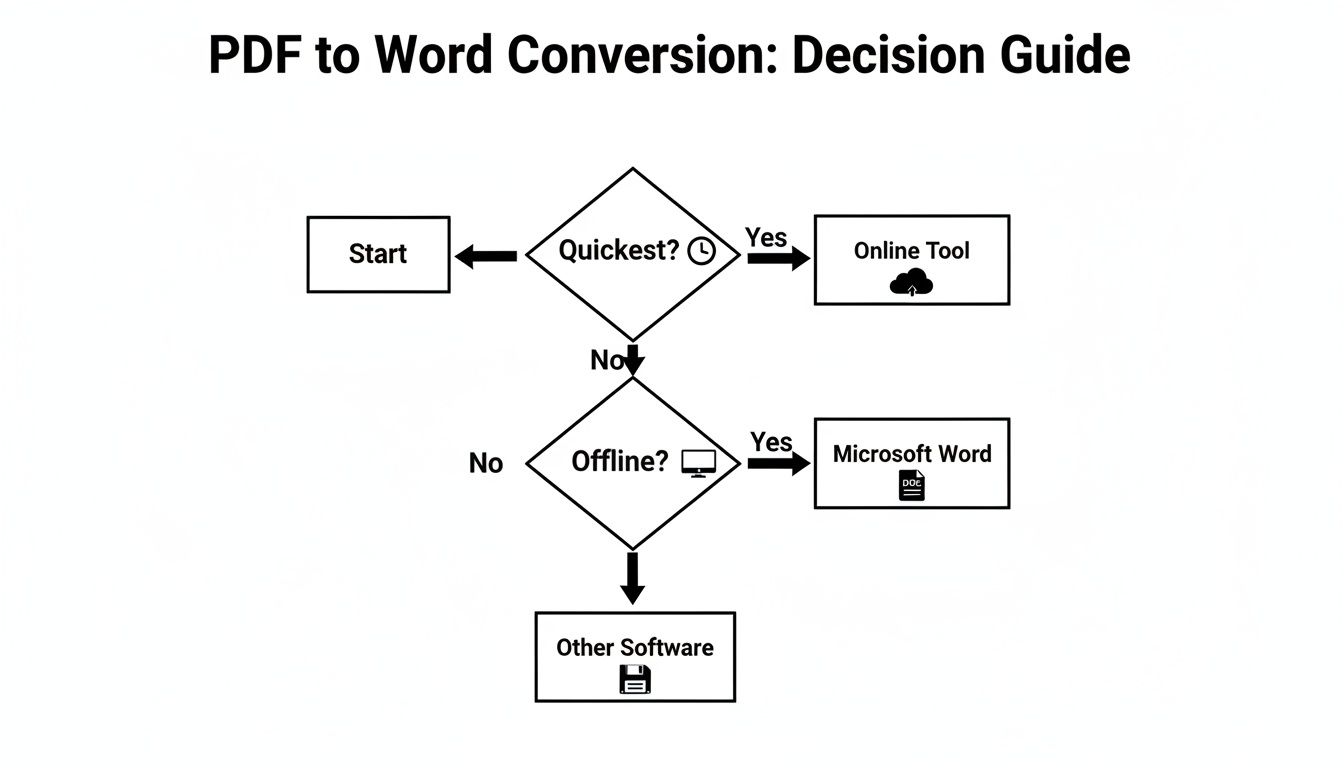
As you can see, the choice often boils down to whether you need it done now or if you need to work on it without an internet connection. Our goal is to make this process feel less like a problem you have to solve and more like a skill you own.
To discover more practical utilities that can simplify your workflow, check out our other guides on B2 BLOGS tools.
Using Online Converters for Instant Results
Sometimes you just need it done. No software downloads, no installations, just a quick conversion from PDF to Word, right now. This is where online converters shine. They are the grab-and-go solution for file conversion—fast, accessible from any device with a browser, and dead simple to use.
Think about those times you’re not on your main computer. Maybe you’re at a library, a hotel business center, or using a colleague’s laptop and need to tweak a report trapped in a PDF. Instead of asking to install software, you can just open a browser, upload your file, and have an editable Word document in under a minute. It’s a lifesaver.
The Simple Drag-and-Drop Approach
The real beauty of most online tools, including our own B2 BLOGS PDF to Word converter, is their simplicity. The entire process is designed to be intuitive, usually boiling down to just a couple of clicks.
You’re typically greeted with a clean interface where you can either drag your file right into the browser window or click to select it from your computer.
The workflow is built for speed: upload the PDF, let the tool work its magic, and download the finished Word file. Done.
This demand for quick-fix tools is massive. The dedicated PDF-to-Word converter software market generated over USD 1.32 billion recently and is projected to nearly double by 2033. This growth, detailed in market analysis from Dataintelo.com, ensures the tools we all rely on are constantly getting better, faster, and more accurate.
Balancing Speed with Security
While the convenience is undeniable, it’s smart to pause and think about privacy, especially when dealing with sensitive documents. Remember, you’re uploading your file to someone else’s server. You need to trust that your data is being handled responsibly.
Key Takeaway: A trustworthy online converter is always transparent about its security practices. My rule of thumb? Never upload confidential financial, legal, or personal documents to a site without first checking its privacy policy.
Before you hit “upload,” look for these green flags:
- A Clear Privacy Policy: The site should spell out exactly how your data is used and, more importantly, for how long it’s stored.
- Automatic File Deletion: Reputable services automatically and permanently delete your files from their servers after a short window, usually just a few hours.
- SSL Encryption: Check that the website URL starts with “https://.” This little padlock icon means your connection to their server is encrypted and secure.
Keeping these points in mind allows you to use online tools with confidence, getting the speed you need without sacrificing peace of mind. This same principle of easy access applies to other conversions, too; it’s just as simple to convert a PDF to a JPG image when the need arises.
You probably don’t need a special tool to turn that PDF into a Word document. In fact, the solution might be hiding in plain sight, already installed on your computer or waiting in your cloud drive. I’ve seen so many people surprised to learn that both Microsoft Word and Google Docs have powerful, built-in conversion features.
For years, I was one of them. I automatically reached for third-party apps, assuming Word just couldn’t handle PDFs properly. I was wrong. The process is remarkably simple and often preserves the original layout with impressive accuracy, especially for documents that are mostly text. It’s perfect for when you need to work offline or just want to stick to a familiar environment.
Unlocking PDFs Directly in Microsoft Word
If you’re running a modern version of Microsoft Word, you can convert a PDF just by opening it. It feels almost too simple to be true, but it works surprisingly well for things like reports, contracts, or manuscripts where the integrity of the text is your main priority.
Here’s the basic flow:
- Fire up Microsoft Word.
- Head to File > Open and browse for the PDF you want to convert.
- Word will pop up a little notification, letting you know it’s about to convert your PDF into an editable Word document. Just click OK.
- After a moment, your document will appear, ready for you to start editing.
Pro Tip: This built-in feature is a game-changer for text-heavy documents. While it might stumble a bit with complex designs full of layered graphics, its performance on standard business or academic papers is often better than many free online tools.
Using Google Docs for Cloud-Based Conversions
For those who live and work in the cloud, Google Docs offers an equally powerful alternative. This method is fantastic because it’s completely free, you can do it from anywhere, and it even includes some impressive Optical Character Recognition (OCR) for scanned PDFs.
The process is a little different but just as easy:
- First, upload your PDF file to your Google Drive.
- Next, right-click on the file you just uploaded.
- From the menu that appears, hover over Open with and then click Google Docs.
Google takes over from there, automatically processing the file and opening it as a brand new, fully editable Google Doc. You can make your changes right in the browser, and when you’re done, just download it as a Microsoft Word file by going to File > Download > Microsoft Word (.docx).
This is my go-to approach for scanned documents or whenever I’m working on a device like a Chromebook. If you’re looking for more practical solutions to common digital problems, check out our guides covering tech information on the blog.
Advanced Conversions with Desktop Software
When you move past simple text documents, the game changes. Online converters and built-in tools are fantastic for a quick grab, but they can stumble when faced with a complex annual report, a design-heavy brochure, or a contract filled with sensitive data.
For those moments when precision, layout integrity, and absolute privacy are non-negotiable, you need to bring the work offline. This is where dedicated desktop software shines.
By processing files directly on your computer, these applications create a secure, self-contained environment. Nothing gets uploaded to a third-party server, giving you complete peace of mind. For anyone who converts PDFs regularly, the robust feature sets and reliability of desktop tools make them an essential part of the professional toolkit.
Adobe Acrobat Pro: The Industry Standard
There’s a reason Adobe Acrobat Pro is the heavyweight champion of the PDF world. It’s not just a converter; it’s a tool built on a deep understanding of the PDF’s underlying structure. It doesn’t just scrape text—it intelligently reconstructs the entire document.
This means columns stay in place, vector images remain crisp, and complex tables are rebuilt with their formatting intact. Think of a company newsletter with overlapping graphics and text boxes. Acrobat’s engine is engineered to untangle that complexity and reproduce it faithfully in Word.
One of its biggest advantages is the ability to fine-tune the conversion before you even click export. You can tell it exactly how to handle images, text flow, and tables, which drastically cuts down on the manual cleanup you have to do later.
Expert Insight: I regularly rely on Acrobat for data-heavy financial statements. Where most tools mangle complex tables into a mess of text boxes, Acrobat’s ability to preserve the actual cell and row structure is incredibly accurate. It’s a massive time-saver.
LibreOffice Draw: A Powerful Free Alternative
If the subscription cost of Acrobat is a barrier, don’t worry. The open-source community has a fantastic, no-cost solution hiding in plain sight: LibreOffice Draw.
Most people associate LibreOffice with its word processor, but Draw is the secret weapon for PDF manipulation. It opens a PDF not as a flat document, but as a collection of editable objects. Every line, every image, and every text block is an individual element you can move, edit, or delete.
This granular control is perfect when you only need to extract a specific chart or make small text changes before sending the file on its way. Once you’ve tweaked the document to your liking, you can easily export it to a variety of formats, including a Word-compatible document.
While its final Word output might not have the pixel-perfect fidelity of Acrobat for extremely complex layouts, its editing power is miles ahead of any free online tool. It’s the perfect choice for users who need advanced control without the professional price tag.
By the way, if you’re dealing with spreadsheets locked in PDFs, the same principle of using a dedicated tool applies. You can learn more in our detailed guide on converting PDF files to Excel.
Desktop Software Feature Breakdown
To help you decide which tool fits your workflow, here’s a quick head-to-head comparison of these two desktop powerhouses. Each has a clear strength depending on your budget and primary needs.
| Feature | Adobe Acrobat Pro | LibreOffice |
|---|---|---|
| Best For | High-fidelity, complex layout preservation | Free, open-source editing and conversion |
| Cost | Subscription-based | Completely free |
| Security | Excellent (offline processing) | Excellent (offline processing) |
| Formatting Accuracy | Highest level, great for graphics | Good, but may require some manual cleanup |
| Key Advantage | Pre-conversion settings and batch processing | Granular object-based PDF editing in Draw |
Ultimately, Acrobat is for the professional who needs the best possible result every time with minimal fuss, while LibreOffice is for the resourceful user who values control and doesn’t mind a bit of hands-on work to get a great result for free.
Wrestling with Scanned PDFs and Fickle Formatting
Not all PDFs play by the same rules. Sooner or later, you’ll run into the toughest kind: the scanned document. This isn’t really a document at all; it’s a picture of one. The text you see isn’t text—it’s just part of an image. If you try a normal conversion on one of these, you’ll just get a Word doc with a single, uneditable picture inside. Useless.
This is the moment when Optical Character Recognition (OCR) becomes your absolute best friend. Think of OCR as a detective that scans the image, recognizes the shapes of letters and numbers, and translates them back into actual text you can edit. Most serious converters, from Adobe Acrobat Pro to the surprisingly capable Google Docs method, have this magic built right in.
Without OCR, your only other option is to retype the whole thing by hand, a soul-crushing and mistake-prone chore. With it, a 50-page scanned report can become a fully editable Word file in a matter of minutes.
The Magic of Optical Character Recognition
OCR is the bridge between a static picture and a living document. When you feed a scanned PDF through an OCR-enabled tool, its software meticulously analyzes the image’s pixels, identifies characters, and reconstructs the text from scratch.
Modern OCR is shockingly good, often hitting over 99% accuracy on clean, high-quality scans. But that’s the key—the quality of your original scan is everything.
- High-Resolution is King: A crisp scan at 300 DPI (dots per inch) or higher will give the OCR engine the best chance of success.
- Clean and Clear: Scans with weird shadows, page glare, or faded, low-contrast text will confuse the software and lead to errors.
- Keep it Simple: Standard fonts like Arial or Times New Roman are a breeze for OCR to read. Overly decorative, handwritten, or funky fonts are where it starts to struggle.
And if you’re working with documents that contain important images, keeping those images optimized is crucial. It’s worth taking a moment to learn how to compress JPG files so your final Word document doesn’t become a bloated, slow-moving monster.
Preserving Complex Layouts and Formatting
Even when your PDF is text-based, the conversion can sometimes mangle a beautiful layout. Documents with columns, intricate tables, and images wrapped in text are notorious troublemakers. When the initial conversion looks like a disaster, a little manual cleanup is almost always part of the process.
A PDF is a perfect, frozen snapshot of a document. A Word file is a living, flowing document. The conversion process is the art of translating that frozen snapshot back into something that can flow, and sometimes, things get lost in translation.
When your converted document looks chaotic, don’t panic. Just work through the most common issues one by one. Here’s a quick troubleshooting checklist to get your document back in shape:
- Start with the Fonts: Does the text just look wrong? If the original PDF used a font you don’t have installed, Word will swap in a replacement, which can wreck your spacing and alignment. Installing the missing font is often the quickest fix.
- Rebuild Broken Tables: Tables often get converted into a jumbled mess of text boxes. The best move is to copy the text out, create a fresh, clean table in Word, and paste the content back into the right cells.
- Fix Jumbled Columns: If your neat columns have collapsed into one long block of text, head over to Word’s Layout > Columns feature to redefine the page structure and bring order back to the chaos.
- Reposition Rogue Images: Images rarely stay put. Just click and drag them back to where they belong, then right-click to adjust the text wrapping settings (Layout Options > Wrap Text) to make the text flow around them correctly again.
Common Questions About PDF to Word Conversions
Even with the best tools, turning a PDF into a Word document can feel like a bit of a dark art. Things go wrong. Formatting breaks. Security questions pop up. If you’ve ever hit a roadblock, trust me, you’re not alone. I’ve pulled together some of the most common snags people run into, with clear, practical answers from my own experience.
Why Does My Converted Word Document Look So Weird?
This is, without a doubt, the number one frustration. The core of the problem is that PDFs and Word docs speak completely different languages. A PDF is like a digital snapshot—everything is frozen in a precise location. A Word document is designed to be a living, breathing thing where text flows and reflows as you type.
When a converter tries to bridge that gap, it’s essentially making an educated guess about how to translate the PDF’s static layout into Word’s fluid world. Complex tables, multi-column layouts, or funky fonts that aren’t on your computer are notorious for causing translation errors. This is where a high-quality converter engine really proves its worth.
How Can I Convert a PDF Without Losing All My Formatting?
Preserving the original look and feel is the holy grail of conversions. If you’re dealing with a complex design—think brochures, newsletters, or reports with intricate layouts—your best bet is a premium desktop tool like Adobe Acrobat Pro. It’s built from the ground up to understand and replicate those tricky designs.
That said, for simpler, text-heavy documents, Microsoft Word’s own built-in converter often does a surprisingly good job.
No matter what tool you use, always plan on a quick post-conversion cleanup. You’ll almost certainly need to make a few manual tweaks. I usually find myself:
- Fixing table borders that have gone rogue.
- Nudging images back into their proper places.
- Correcting font styles or sizes that didn’t make the jump perfectly.
Are Online PDF to Word Converters Safe?
This is a big one, and the answer is: it depends entirely on the provider. A trustworthy online converter will make your security a priority and be upfront about how they handle your data. The first thing to check is the URL—make sure it starts with B2 BLOGS – DAILY BLOGGING AND INFORMATION, which means your connection is encrypted and secure.
My personal rule of thumb is simple: if the document contains sensitive information like legal contracts, medical records, or financial data, I always use a secure desktop application. It keeps the entire process on my local machine, completely removing the risk of exposing my data on a third-party server.
Before you upload, take a minute to scan the site’s privacy policy. Reputable services will have a clear policy stating that your files are automatically and permanently deleted from their servers after a short period, typically just a few hours.
Is It Possible to Convert a Scanned PDF for Free?
Absolutely, but you need a tool with a specific superpower: Optical Character Recognition (OCR). This is the magic that allows software to “read” the text in an image and make it selectable and editable.
One of the best free options for this is built right into Google Docs. Just upload your scanned PDF to Google Drive, right-click the file, and select Open with > Google Docs. The platform will work its OCR magic, extracting the text into a brand new, editable document. The formatting might be a bit rough around the edges and need some love, but it’s a fantastically effective way to avoid retyping an entire document from scratch.
Ready to tackle your next conversion with confidence? The B2 BLOGS website is packed with easy-to-use tools and practical guides to simplify your digital tasks. From file conversions to blogging tips, find everything you need at https://b2blogs.com.


